
Our websites send a lot of email: report deliveries to customers, order notices, contact form messages and alerts to me when something on the server goes wrong. All of it goes out through our Microsoft 365 account, using Microsoft Graph. Until October 2026, the websites signed in to Microsoft with a client secret, which is a password stored in a settings file on the server. On 23 October 2026 I replaced it with a certificate, and at the same time cut down what the login is allowed to do. This is why, what changed, and what I would tell any small business that has a website or app sending email through Microsoft 365.
Why a website needs a Microsoft login at all
When a website sends email through Microsoft 365, there is no person signing in. The website has its own identity, called an app registration, set up in Microsoft Entra (what used to be Azure Active Directory). Each time it wants to send, it proves who it is to Microsoft, gets a token that lasts about an hour, and uses that token to call Graph.
There are two ways for an app to prove who it is: a client secret or a certificate. Microsoft's setup screens make the secret the easy option, so that is what most guides show and what most small businesses end up with. It is what we had.
What we had before
Our old setup had two weaknesses, and the second was much worse than the first.
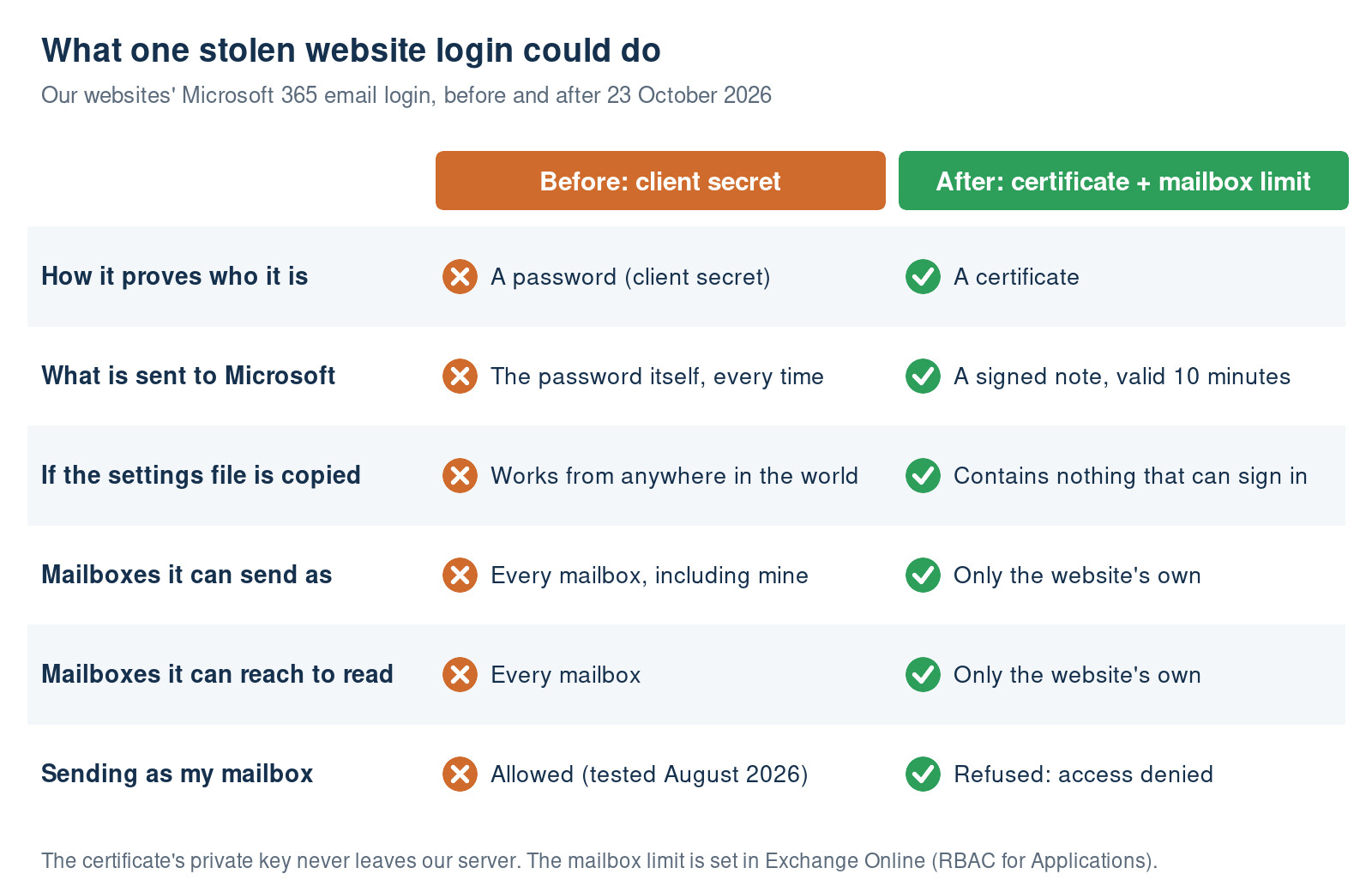
The secret was a password. It sat as one line in the server's settings file and was sent to Microsoft every time the website asked for a token. Anyone who got a copy of that line, from the server, a backup, a log file or a careless screenshot, could use it from anywhere in the world, and it would work exactly as it did for us.
The login could do far too much. The app had been given Microsoft's standard application permissions to send and read mail. Application permissions apply to every mailbox in the organisation, not just the one the website needs. In August 2026 I checked: the website's login could send an email as me, from my own mailbox. Its permissions covered reading every mailbox too. Nothing on the website needed that. It only ever sends from a couple of website addresses.
Put those together and the risk is plain. Anyone who copied one line from the server could read our email and send convincing messages as anyone in the company. That is exactly how fake invoice fraud works: a real mailbox, a real email thread, and new bank details.
Change one: a certificate instead of a secret
A certificate works differently from a password. It comes in two halves. The private key stays on our server. The public half, the certificate itself, is uploaded to Microsoft. When the website wants a token, it writes a short signed note saying who it is, valid for ten minutes, and signs it with the private key. Microsoft checks the signature against the public half and issues the token.
The private key itself is never sent anywhere. What travels across the internet is a signed note that expires within ten minutes and is no use to anyone after that. A copy of our settings file or a backup of the website's code no longer contains anything that can sign in to Microsoft.
What I did:
- Created a 2,048 bit RSA key and a self signed certificate with OpenSSL, valid for two years. You do not need to buy a certificate for this: Microsoft only needs to recognise the one you upload.
- Uploaded the certificate (the public half only) to a new app registration in Entra.
- Put the private key in its own folder outside the website's public files, readable only by the server's administrator and the website itself.
- Changed the website's code to sign the ten minute note, which takes about forty lines of PHP using OpenSSL functions built into PHP. No extra library was needed.
- Deleted the old secret from the server's settings file.
Change two: a login that can only touch the website's mailboxes
A certificate makes the login harder to steal. It does nothing about what a stolen login can do. That second fix mattered more.
I gave the website its own app registration, separate from the one our other systems use, and named it to say what it is for: "PTS Website Mail Send Only". It has no mail permissions in Entra at all. Instead, its access is granted in Exchange Online using a feature Microsoft calls RBAC for Applications. You create a management scope that lists the mailboxes the app may use, then assign the app mail roles that apply only within that scope. Exchange checks every request against that list.
One trap here: permissions granted in Entra and permissions granted in Exchange add together. If the app still has the old organisation wide mail permissions in Entra, the Exchange scope restricts nothing. You have to remove them from Entra, or start with a fresh app registration as I did. I checked the token Microsoft issues to our website: it carries no Graph permissions at all, which is what you want to see.
The test that matters: when the website now tries to send as my mailbox, Microsoft refuses with an "access denied" error. Sending from the website's own addresses works as before.
Your situation may be slightly different. ask a question below ↓ and our editorial team will reply with our advice.
Before and after
What it does not fix
This is a big improvement, but it is not magic, and it is worth being clear about the limits.
- Someone in full control of the server could still use the key. If an attacker had complete control of our server, they could use the private key while they were there. The difference is what they would get: the ability to send from the website's own addresses, not to read my email or send as me.
- Certificates expire. Ours runs until 22 October 2028. When it expires, every email the websites send will stop, and nothing will warn us unless we plan for it, so it needs renewing well before then. A client secret expires too, often sooner, so this is not a new problem, but it is easy to forget over two years.
- Email authentication is a separate job. None of this proves to the people receiving our email that it is genuine. That is the job of SPF, DKIM and DMARC, which I cover in SPF, DKIM and DMARC on Microsoft 365.
What I would tell any small business
- Find out what is sending email as your business. Websites, booking systems, CRMs, accounting packages and scanners often have their own Microsoft 365 login. In Entra, look under App registrations and Enterprise applications for anything with mail permissions.
- Check what each one can reach. If an app has Microsoft's standard application permissions to send or read mail, it can almost certainly reach every mailbox you have, including yours.
- Limit it to the mailboxes it needs. RBAC for Applications in Exchange Online does this, and remember to remove the organisation wide permissions from Entra or the limit does nothing.
- Use a certificate rather than a secret wherever the software supports it, and keep the private key out of the website's public folders.
- Test the refusal. Try to send as a mailbox the app should not be able to use. If Microsoft lets it, the limit is not working.
- Put the expiry date in the diary, with a reminder a month before.
The most valuable part was not the certificate itself. It was finding out, before anyone else did, that a single line in a settings file could have sent email as me.




Ask Technology for Small Business a question
Ask our editorial team a question and we will reply with our advice. Tell us as much about your situation as you can: the more detail you give, the more useful our answer can be.
You do not need to use your real name. Please do not include your full address, phone number, email address, or the names of other people. We may edit or remove identifying details for privacy and legal reasons.
Comments are moderated before publication.